

دليل المستخدم
Maintenance
Maintenance holds the problems at your properties and the jobs that fix them: requests, jobs given to technicians, contractors and freelancers, preventive schedules, and the contractors themselves.
الدليل بالعربية قادم قريبًا. إلى أن يصدر، تجدون أدناه الدليل بالإنجليزية.
المحتويات
What you can do here:
| Task | Who |
|---|---|
| See and sort requests | Principal, Administrator, Maintenance manager; Accountant and Technician look |
| Log a request | Principal, Administrator, Maintenance manager |
| Accept or change an AI suggestion | Principal, Administrator, Maintenance manager |
| Give out a job | Principal, Administrator, Maintenance manager |
| Follow a job and send a contractor their link | Principal, Administrator, Maintenance manager |
| Record a job's cost | Principal, Administrator, Maintenance manager |
| Owner approvals | Principal, Administrator, Maintenance manager |
| See my jobs | Technician, Maintenance manager |
| Set up preventive maintenance | Principal, Administrator, Maintenance manager |
| Add contractors and freelancers | Principal, Administrator, Maintenance manager; Accountant looks |
The accountant sees Requests and Contractors without the buttons that change things. The technician sees Requests and My jobs. Technicians usually work their jobs in the RentLoop phone app, with photos taken on site; the phone app will have its own guide. Inspections at move-in and move-out are on the lease (see Leasing).
Requests
Maintenance › Requests lists every request: number, what it is and its kind of work, where, the urgency, who it is assigned to, its status and its age.
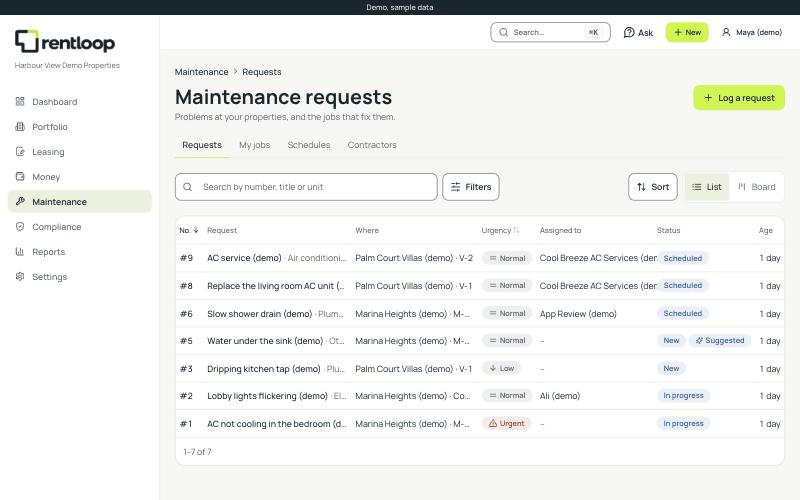
A request is New until a job is given, then Scheduled, In progress, and Done once every job is finished or cancelled. A request marked Suggested came with an AI suggestion to check.
Board shows the same requests as columns by status. Move to… on a card changes its status.

Search by number, title or unit, or use Filters.
Log a request
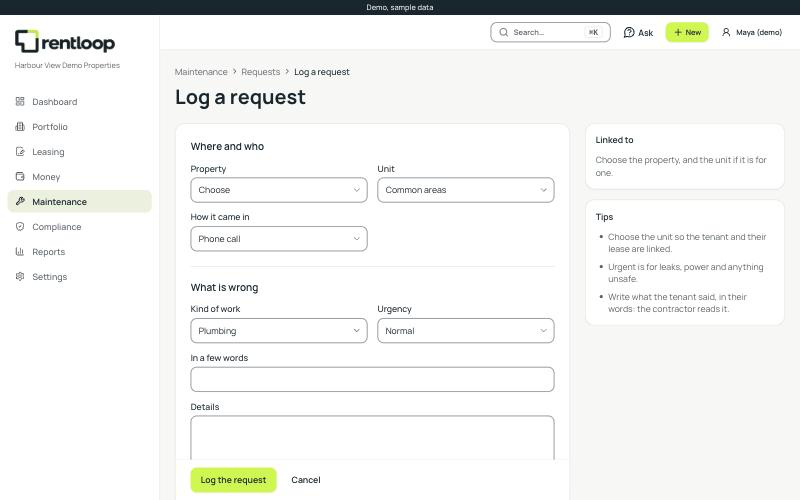
Click Log a request (on Requests, or under New at the top).
Under Where and who, choose the Property, and the Unit (leave Common areas for the building). Choosing the unit links the tenant and their lease.
Choose How it came in: Phone call, Seen by staff, Tenant app or WhatsApp.
Under What is wrong, choose the Kind of work (plumbing, electrical, air conditioning and so on) and the Urgency: Low, Normal, Urgent or Emergency. Urgent is for leaks, power and anything unsafe.
Write it In a few words, then the Details. Write what the tenant said, in their words: the contractor reads it.
Click Log the request.
On the request's page, Add photos adds up to 15 photos of the problem so whoever does the job can see it.
A request from the tenant portal
Tenants report problems from their portal. RentLoop's AI reads what they sent: the report's text, with ID, account and IBAN numbers removed, and their photos (made smaller). The AI suggests how to log it: where, the kind of work, the urgency, a title and a summary, side by side with what the tenant sent. Nothing changes until you decide.

Accept uses the suggestion.
Change lets you edit it first.
Reject keeps the request as the tenant sent it.
Give out a job
A request is fixed by one or more jobs.
On the request's page, click Give out a job.
Choose Given to: a technician, a contractor or a freelancer, then Who.
Choose the day (On) and an Estimated cost if you have one.
Write the Instructions.
Click Give the job.

The request becomes Scheduled.
Follow a job
Each job on the request's page shows who has it, its estimate and cost, and its history: given out, accepted, started, done, with notes and who did each step. Before and after photos of the work are kept with the job.
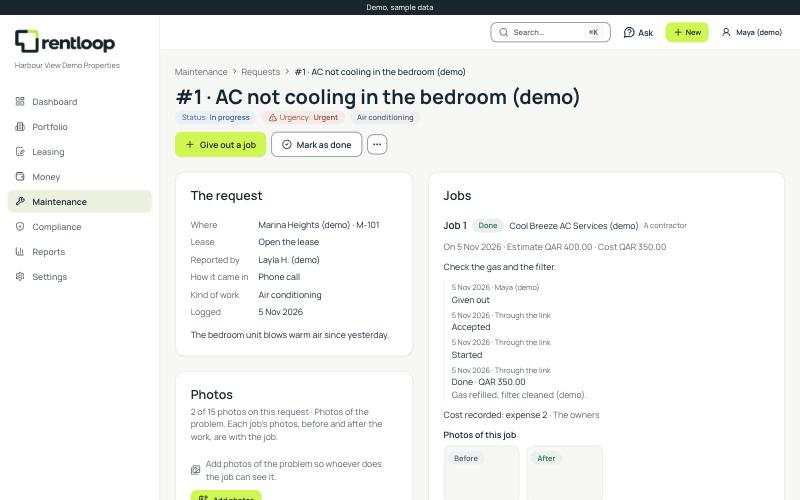
The office can move the job on with Accept, Decline, Start, Done and Add a note, or Cancel the job.
A contractor's link: contractors and freelancers need no account. Click Send a link: RentLoop makes a link, shown once, to copy or Send by WhatsApp. Through it the contractor sees the job and can accept or decline it, say they have started, mark it done with their bill, and add notes. They see the request's title and description, so keep the tenant's details out of them. Stop the link ends it; Send a new link makes another. Staff see their jobs when they sign in, so links are for contractors and freelancers only.
Mark as done on the request closes it once every job is finished or cancelled. Cancelling the request also cancels its open jobs and stops their links.
Record the cost
When a job is done, Record the cost turns it into an expense: what it cost, who bears it, and how it is paid (see Spending). The job then shows "Cost recorded: expense …".
A contractor's bill reported through their link is their claim: nothing is charged until someone in the office records it.
Owner approvals
An owner's management agreement can have an approval limit. A job whose cost, for that owner's share, is above it waits for the owner's answer in their portal. The job shows "Awaiting" the owner, with their share.
The job doesn't start, and its cost isn't charged to the owners, until they approve. You can still cancel it, or record the cost as the office's.
My jobs
My jobs lists the open jobs given to you. "No open jobs. Well done." means there are none.
Preventive maintenance
Maintenance › Schedules holds work that comes round on its own: the AC every three months, the lifts every month, the pest control every quarter. Each date's request and job are made a few days ahead.

The next 30 days shows what is coming, and whether its request is made yet (Coming, Request made, Skipped). Below it, every schedule with how often it comes, its next date, who does it and its status.
To add a schedule:
Click New schedule.
Choose the Property, and a Unit or The whole property.
Enter What is done, the Kind of work, the Urgency and the Instructions for whoever does it.
Set how often: Every so many days, weeks or months, and the First date.
Set the Days ahead to make the job.
Choose Who does it and their Name, or Decide when it comes. Add an Estimate per visit if you like.
Click Save the schedule.
On a schedule's page, Pause stops it making requests until you Resume; dates that pass meanwhile are not made later.
Contractors and freelancers
Maintenance › Contractors lists the companies and people you call: their roles, phone, trades, call-out fee, rate per hour and your rating.

To add one:
Click New contractor.
Choose Person or Company, and the Roles: contractor, freelancer or both.
Enter the name (a company's trade name, or a freelancer's own name), the Phones with the country code so they get the job's link, Emails, the Address and Notes.
Click Save.
On their page, set their Trades and rates and Your rating, add their commercial registration under IDs, and see their Work orders.