

User guide
Portfolio
Portfolio holds what you manage: properties, their buildings and units, and the owners of each unit.
Contents
What you can do here:
| Task | Who |
|---|---|
| Find a property and see how it stands | Everyone |
| Add a property | Principal, Administrator |
| Add buildings and units | Principal, Administrator |
| Look after a unit: details, meters, photos, documents | Principal, Administrator; others look |
| Say who owns a unit | Principal, Administrator |
| Add an owner and their management agreement | Principal, Administrator |
| See occupancy and vacant units | Everyone |
The accountant, leasing agent, maintenance manager and collector see every Portfolio page without the buttons that change things. The technician sees Properties, Occupancy and Vacant units, not Owners.
Properties
Click Portfolio in the menu. The Properties list shows each property's kind, district and how many of its units are let.

Type in Search by name or district to narrow the list.
Filters and Sort work as on every list.
Click a property to open it.
A property's page has three tabs: Overview, Budget and Forecast. Budget and Forecast are described in Owners, statements and budgets.

The Overview shows, across the top: Units let, Monthly rent on its current leases, Arrears and Deposits held. Below them are its Details (address), Buildings, Units, Photos, Amenities and Documents.
Add a property
In Portfolio, click New property.
Give its Name in English or Name in Arabic. One is enough; add the other later.
Choose its Kind: Building, Compound, Villa group, Mixed use or Land.
Enter its District. Lists and reports group properties by district.
Fill in the Address (Zone, Street, Building number, City) and any Notes.
Click Save.

The property opens. Add its buildings and units next.
To change it later, click Edit on its page. To take it out of the lists, use ⋯ › Archive the property: it and its units stay in the records, with their leases and money, and you can restore it. Show archived on the list brings archived properties back into view.
Add buildings and units
A building: on the property's page, click Add a building under Buildings, and give its name and number of floors.
A unit:
On the property's page, click Add a unit.
Enter the Unit code: use the code on the door, such as A-101. It is how the unit is found.
Choose the Unit kind: Flat, Villa, Shop, Office, Warehouse, Staff housing, Bed space or Parking.
Choose its Building (or No building) and Floor.
Fill in Bedrooms, Bathrooms, Area (m²) and Furnishing.
Enter the Market rent per month: the asking rent. The lease decides what is charged.
Click Save.
A unit
Click a unit in its property's Units list. The unit's page shows its Status, its Current lease, the Tenant, Rent a month, what is Owed now and the Deposit held.
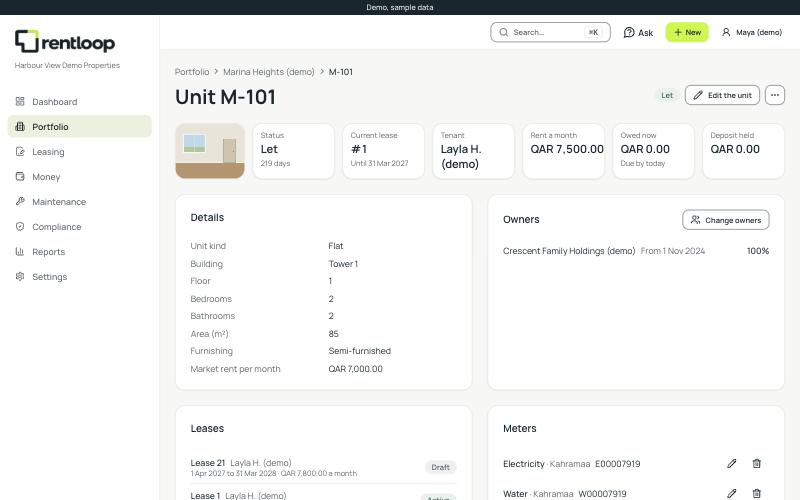
Below are its Details, Owners, Leases, Meters, Amenities, Documents and Photos.
Edit the unit changes its details.
Add a meter records an electricity or water account number.
Add an amenity records a pool, parking, a balcony and so on.
Upload adds a document, with an expiry date if it has one.
Add photos adds up to 10 photos at a time, each up to 10 MB (JPEG, PNG, WebP or HEIC). On a phone, Take a photo opens the camera.
A unit's status follows its leases: Vacant, Reserved, Let, Notice given. Set it by hand only when it is Under maintenance or Off market.
Say who owns a unit
Each unit has one or more owners, with a share each. Owners' statements split the rent by these shares.
On the unit's page, click Change owners.
Enter From: the day the new owners take over. Owners before that day stay in the history.
Choose each owner and their Share (%). Add an owner adds another line.
The total must be 100%. Click Save.
Owners
Portfolio › Owners lists the people and companies whose units you manage, and how many units each owns today. Your own office appears too, for units it owns itself.
To add an owner, click New owner, fill in the person or company, and click Save.
An owner's page has Overview, Budget and Forecast tabs. The overview shows their Contact, Management agreement, IDs, Reminders, Portal access, Documents and Units owned today.

To set up the management agreement:
On the owner's page, click Add an agreement.
Choose the Fee: a percentage of rent collected, a fixed amount per statement, or no fee.
Enter the Payout day of the month (1 to 28), or leave it empty.
Enter the Approval limit. A maintenance job whose cost, for this owner's share, is above it waits for the owner's approval in their portal. Leave it blank for none.
Enter Starts on, and a Last day only if it ends.
Save.
The agreement then reads, for example, "7% of rent collected · From 1 Nov 2024 · Paid out on day 15 · approval above QAR 2,000.00". Edit the agreement changes it.
To give an owner their portal, enter their email under Portal access and click Send invitation. They sign in with a code sent by email, with no password. Remove access takes it away.
A party can be an owner and a tenant at once: Add a role on their page.
Occupancy and vacant units
Portfolio › Occupancy shows how your units are let today: units, occupied, vacant and the occupancy rate, then a table by Property, Owner or Unit kind.

Occupancy is units let or under notice, out of the units on the market (all but those off the market).
Portfolio › Vacant units lists every vacant unit, longest vacant first, with its market rent and how long it has been vacant. Filter it by property, kind and the date it became vacant. To find a tenant for one, see the pipeline.